
ITSM
23. September 2026
Enable direct Jira ticket submission in Microsoft Teams
A broken laptop, a missing software license, or an access request often begins with a quick Microsoft Teams message. That may be convenient for the employee, but it leaves the service team with an unstructured request that can be difficult to assign, prioritize, and track.
The Jira Service Management portal in Microsoft Teams turns these informal requests into a consistent service process. With structured Jira ticket submission in Microsoft Teams, employees can select the correct request type, complete the required fields and forms, and follow their ticket without leaving their daily workspace. Meanwhile, service agents retain the workflows, ownership, priorities, and service-level agreements they need in Jira Service Management.
Why bring the JSM portal into Microsoft Teams?
Employees ask for help in Teams because it’s where they are already working. The service team needs those requests in Jira Service Management, where each one can be categorized, assigned an owner and priority, and tracked through resolution.
Embedding the JSM customer portal in Teams connects these two requirements. Employees receive an accessible service entry point, while agents continue working with structured requests in Jira.
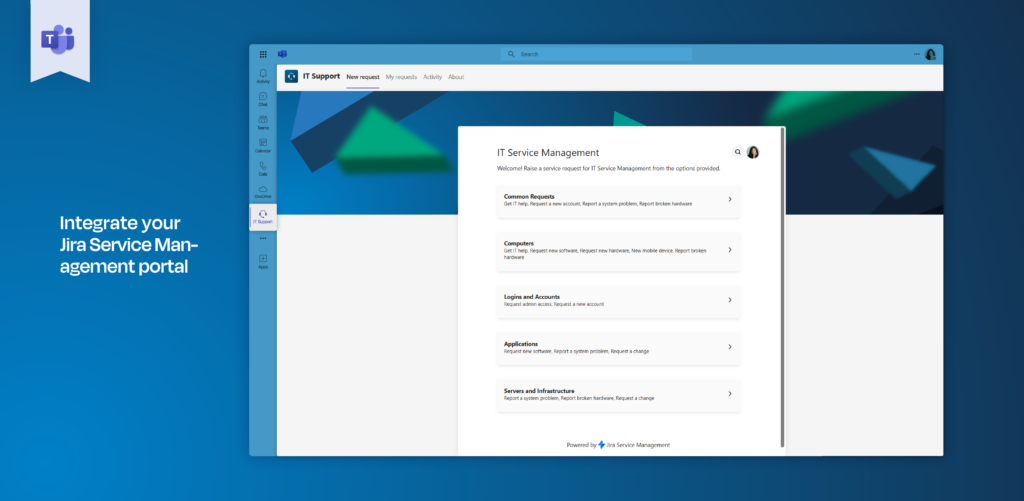
Jira Service Management does not natively place a service portal in Microsoft Teams. With Microsoft 365 for Jira, employees can open the portal from Teams, choose a service desk and request type, complete the configured form, and submit a request. Putting that process where employees already ask for help makes it easier for them to use the right form, while giving the service team the details it needs to route and track the request from the start.
After submission, the request appears in Jira Service Management, where the service team can route it to the right queue, assign an agent, apply an SLA, and move it through the established workflow. Agents can also collaborate in Microsoft Teams through a chat connected to the ticket, so their discussion stays tied to the request as they work toward a resolution.
The JSM portal keeps ticket intake in Microsoft Teams structured
A chat message is suitable for asking a quick question. It is less suitable for collecting all the information needed to process an access request, investigate a device problem, or onboard a new employee.
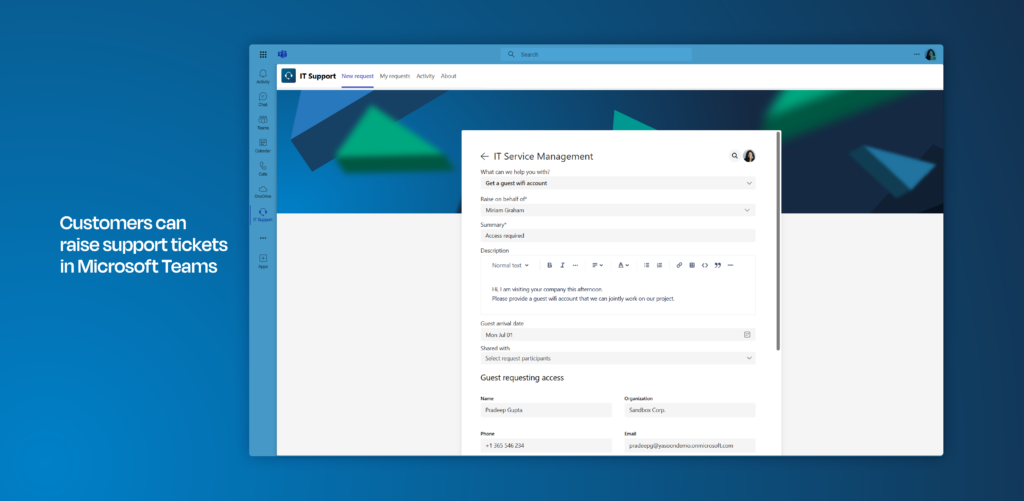
The JSM portal solves this by preserving the request structure already configured in Jira Service Management. Different request types can collect different information. An account request may ask which system and access level are required, while a hardware request may ask for the device, location, business impact, and preferred replacement date.
Required fields help prevent incomplete requests. Jira forms can collect additional or conditional information, and suggested Confluence knowledge base articles may help employees resolve common issues before submitting a ticket.
This gives the service team better information from the beginning. It also reduces follow-up questions such as “Which device is affected?” or “When do you need access?”
Employees can follow requests without opening Jira
Ticket submission is only one part of the employee experience. People also want to know whether their request has been received, who is working on it, and whether further information is required.
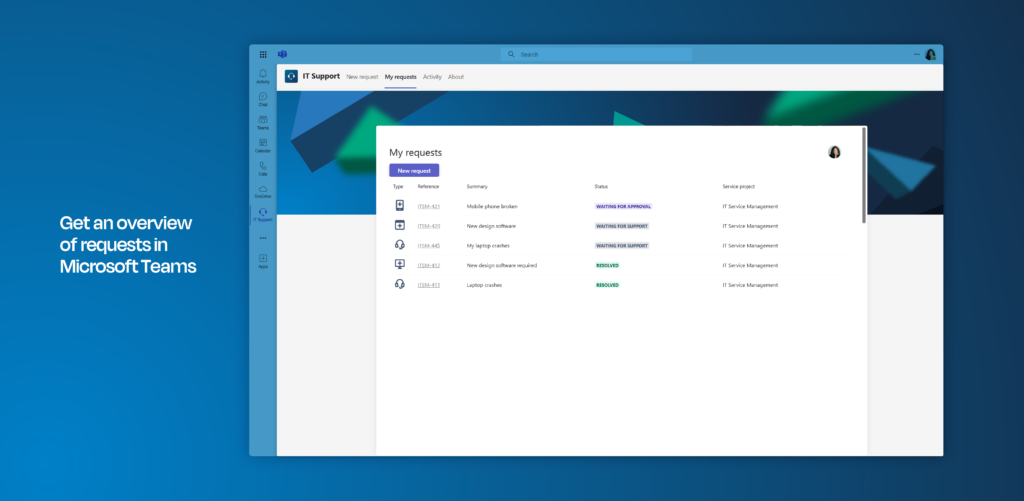
The Teams portal app includes areas for new requests, existing requests, and activity. Employees can use “My Requests” to review their tickets and follow their progress. Configured notifications can inform them about public comments, approvals, and status changes.
The service agent remains in Jira Service Management. The employee remains in Microsoft Teams. Both sides work with the same request and status instead of maintaining separate conversations.
The Teams portal app documentation explains the available portal settings, request notifications, deployment responsibilities, and supported forms. The rollout can follow how your organization is structured, whether by department, location, or function. Jira administrators choose which JSM portal the app displays, while Teams administrators deploy it to the users who need that portal. This puts the relevant service entry point in front of the right team.
Give guidance but keep other ticket creation options available
The JSM portal should guide employees through repeatable requests that need structured information. But people will still report problems in the conversation they are already having, email someone they know, or mention an issue on a call. If those reports stay outside Jira, they also stay outside the team’s queues, ownership, and tracking.
Keep a path from each of those interactions into the service workflow. A Teams chat or channel message can become a Jira request linked to the conversation. From Outlook, an agent can create a Jira or JSM request from an email, include relevant content and attachments, and submit it on behalf of the sender. Agents can also create tickets directly in Jira for phone calls, monitoring alerts, or meetings.
The portal remains the standard entry point. These other routes ensure that an unexpected way of reporting a problem does not prevent it from becoming managed service work.
How to implement the JSM portal in Teams
Start by reviewing the request types and forms employees already use. Remove unnecessary fields, make essential information mandatory, and confirm that portal permissions are appropriate for the intended audience.
Next, install Microsoft 365 for Jira from the Atlassian Marketplace and activate the required Teams features. The Jira administrator prepares and configures the portal app, while the Microsoft Teams administrator deploys it to the relevant users. Microsoft 365 permissions and notifications may also require administrative approval.
Before a wider rollout, test the complete employee journey:
- Open the portal in Teams.
- Submit each important request type.
- Verify fields, forms, attachments, and knowledge suggestions.
- Confirm that the request reaches the correct JSM project and queue.
- Test comments, approvals, notifications, and “My Requests”.
- Verify access with a representative employee account.
The Microsoft 365 for Jira setup guide describes the responsibilities of Jira, Teams, and Microsoft 365 administrators.
What changes when you bring the JSM portal to Teams?
Employees no longer have to choose between the convenience of Microsoft Teams and the structure of Jira Service Management. They can submit and track requests where they already work, while service teams retain forms, ownership, SLAs, workflows, and reporting.
The practical benefits reported by Microsoft 365 for Jira customers include approximately 60% faster response times in complex projects, 30 to 40% faster processing of service requests, and an estimated 25% productivity increase for support teams. These are customer-specific outcomes from connected Microsoft 365 and Jira workflows, not guaranteed results from the portal alone.
Microsoft 365 for Jira connects this structured portal intake with Teams conversations, Outlook email, and automation. Book a tailored demo to explore what the same approach could change in your organization.