
ITSM
19. August 2026
Teams messages are not tickets: How to track requests in Jira Service Management

Employees often ask for help on Microsoft Teams. A colleague reports an access problem in a direct message, flags faulty equipment in a channel, or asks HR a question in a group chat. Someone responds, the conversation continues, and the request never becomes a ticket.
Microsoft Teams ticketing addresses this gap. Microsoft Teams remains the communication channel, while Jira Service Management provides the structured workflow for assigning, prioritizing, tracking, and reporting the request.
What happens when Teams requests are not tracked?
A Teams message may contain everything needed to recognize a problem, but it does not automatically create a managed service request. The problem is that a conversation alone does not provide the workflow controls required to manage a request consistently.
Untracked requests create several operational problems:
- Requests depend on individual memory: If the recipient is busy or absent, the request may remain unresolved.
- Support workload becomes invisible: Managers cannot accurately measure demand when part of the workload exists only in Teams.
- Context gets lost: Agents may copy only a short summary into Jira and add screenshots, replies, or troubleshooting steps.
- Service becomes inconsistent: Similar requests may receive different handling depending on how they were submitted.
- Handovers become difficult: Another agent can see the Jira ticket but not the conversation that explains what happened.
A useful rule is: if a request needs ownership, prioritization, follow-up, reporting, or escalation, it should become a ticket.
Microsoft 365 for Jira connects these conversations with Jira and Jira Service Management. Employees can continue using Teams, while support agents manage the resulting tickets in Jira.
A quick spoiler: A Microsoft & JSM integration alone does not define your ticketing process. You still need to decide which intake methods fit your organization’s communication habits and onboard employees accordingly. Clear guidance on when to use the JSM portal, convert a Teams message, or continue with a simple conversation is essential for a smooth workflow.
How the recommended Microsoft Teams ticketing workflow works
The recommended workflow does not automatically convert every Teams message into a ticket. Instead, employees and agents can choose the appropriate intake method based on the request. This article explains the different ways employees and agents can create JSM tickets from Microsoft Teams and highlights the benefits of each intake channel. It can help you choose the methods that best fit your organization’s habits and support processes.
1. An employee raises a request in Microsoft Teams
The process begins where employees already communicate. A request in Microsoft 365 may arrive through:
- A direct Teams message.
- A group chat.
- A Teams channel conversation.
- The JSM customer portal embedded in Teams.
For requests that require specific information, employees should use the embedded JSM portal. For actionable requests that have already been described in a conversation, an agent can create a ticket directly from the relevant Teams message.
The Teams ticketing workflow needs clear onboarding so employees know which method to use. Explain when to submit a structured request through the JSM portal, when an existing Teams message can be converted into a ticket, and when a quick conversation does not require a work item. Short training, practical examples, and clear guidance in support channels help establish consistent habits. Once users follow the right intake path, agents receive better information, employees avoid repeating requests, and both sides spend less time correcting or reconstructing tickets.
2. The message becomes a Jira work item
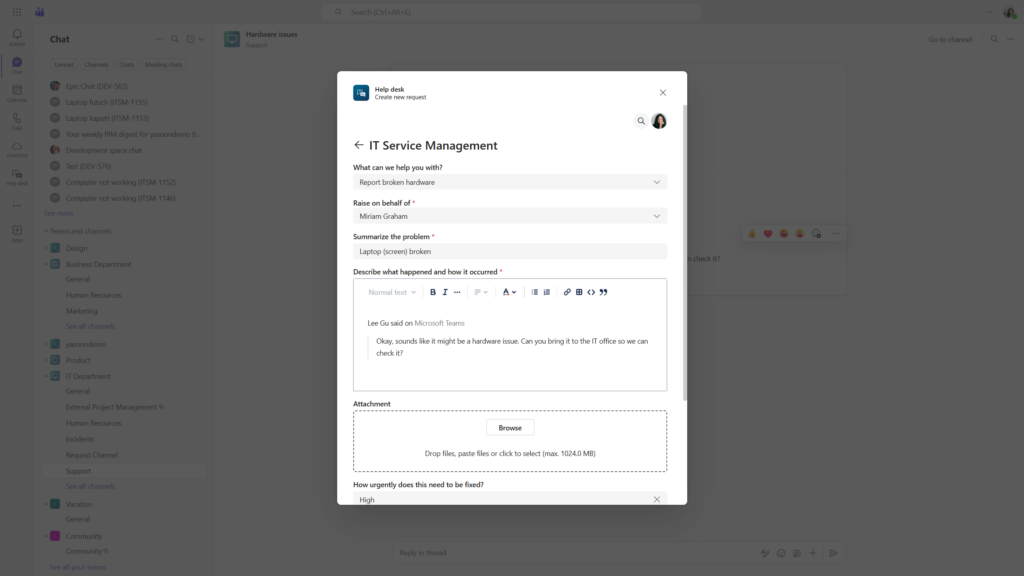
An agent can select a Teams message and create a new JSM request. A creation dialog allows the agent to choose the relevant project and enter supported Jira fields.
The selected Teams message is added to the description, reducing the need to copy the request manually. The conversation can also be linked to the new work item for future reference. See how to create Jira work items from Teams.
If a ticket already exists, the Teams conversation can be linked to that work item instead of creating a duplicate. Learn how to link Teams messages to Jira.
3. Jira manages the structured workflow
Once created, the ticket becomes part of the normal Jira Service Management process. The service team can:
- Assign an owner.
- Set the priority and request type.
- Move the ticket through its workflow.
- Apply SLAs and escalation rules.
- Add internal communication in Microsoft Teams
- Include the request in queues and reporting.
Jira remains the system of record, while Teams serves as the communication interface.
4. The Teams conversation stays connected
When the conversation is linked, authorized Jira users can access the relevant Teams messages from the work item. The Smart Connect bot also posts a link to the Jira work item in Microsoft Teams.
This connection helps agents preserve the original context, including questions, replies, and troubleshooting information. If another agent takes over, they can review the linked conversation instead of asking the employee to repeat the problem.
Sharing of the linked conversations must be configured carefully. When sharing is enabled, Jira users with access to the work item can view the conversation. When it is disabled, visibility remains restricted to the relevant Teams participants and authorized users. Review the sharing options.
5. Agents work in Jira while employees remain in Microsoft Teams
Support agents can manage the request from Jira and communicate with the requester through a linked Teams chat with relevant notifications from JSM. Enable notifications to keep customers and internal teams informed about status changes, new meetings or to collect CSAT. The employee can continue working in Teams without monitoring Jira separately.
For structured self-service, the JSM portal can be embedded in the Teams navigation. Employees can:
- Select a request type.
- Complete the required fields.
- Submit a new request.
- Review ticket information.
- Follow the request’s progress.
This combines a familiar Teams experience with the structure of Jira Service Management. Explore the internal ticketing workflow.
6. Configure the workflow to your needs and keep participants informed with automation
Microsoft 365 for Jira supports the ticket lifecycle with notifications, Presets, and automation. Depending on the configuration, teams can post Jira status updates into the linked Teams conversation, add a Jira comment when a chat starts, transition the work item, or back up a conversation when the ticket is resolved.
Quick note: Automation should focus on meaningful events. Posting every field change can make Teams conversations difficult to follow.
What is required for the workflow?
A Jira administrator first installs Microsoft 365 for Jira and enables the Teams feature. A Microsoft Teams team owner or administrator then installs the free Smart Connect for Jira app.
For JSM self-service, the Teams portal app must also be installed. Microsoft administrators may need to approve the required Microsoft 365 permissions. We recommend involving both Jira and Microsoft administrators during implementation.
Before rollout, review the setup guide and verify:
- Which Jira fields are supported during work item creation.
- Which Teams chats and channels are included.
- How conversation sharing should be configured.
- Which notifications and automations users need.
Keep Teams conversations connected to Jira work
Microsoft Teams makes it easy to ask for help, but a message alone is not a managed ticket. Microsoft 365 for Jira connects that conversation to a structured Jira workflow.
Employees keep using Teams, agents retain Jira’s ticketing capabilities, and the information needed to resolve the request stays connected across both tools.