
Use Case
21. September 2026
How do you structure communication in Jira and Microsoft 365?

Structured communication in Jira and Microsoft 365 starts with a simple principle: Jira should manage the work, while Microsoft 365 supports the conversations, meetings, emails, and personal tasks around it.
The goal is not to force every interaction into Jira, but to keep important communication connected to the relevant work item, JSM request, epic, or project. Teams can continue working in Microsoft Teams and Outlook, while Jira remains the source of truth for ownership, status, priority, workflow, and reporting.
This article explains a practical communication structure for working across both platforms and includes recommendations for teams using the Atlassian Marketplace app Microsoft 365 for Jira. By keeping decisions visible, updates easy to find, and relevant context connected to Jira work, teams can act faster, avoid preventable delays, give AI better context, and spend less time reconstructing information across tools.
Why communication in Jira and Microsoft becomes scattered
Organizations usually do not have a shortage of communication tools. They have a shortage of guidance on how to use them: A Jira work item may contain the task description, while its requirements are discussed in a Teams chat. The latest decision might be documented in an Outlook email, an unresolved question may appear in a meeting, and the next action may exist only in someone’s Microsoft To Do list.
Each tool is working as intended. The problem is that nobody has defined how the information should remain connected. This creates several recurring risks:
- Teams spend time reconstructing the history of a task.
- Decisions are visible only to the original participants.
- People copy information manually between tools.
- New assignees cannot understand why a decision was made.
- Stakeholders receive inconsistent or outdated updates.
- Important requests remain conversations instead of becoming trackable work.
- Jira statuses don’t reflect what is actually happening.
- AI tools don’t have the context they need to perform to full extent
Structured communication addresses these risks by giving every tool and entity a specific role.
What should Jira and Microsoft each manage?
Jira should be the system of record for managed work. Microsoft 365 should provide the most appropriate communication interface for the people involved.
Microsoft recommends using Teams channels for project collaboration, knowledge sharing, and conversations that should remain available to a broader team. This makes channels a better fit for shared updates than private chats in many scenarios. See Microsoft’s guidance on standard channels in Microsoft Teams.
Recommendations on how to structure communication in Jira and Microsoft 365
There is no single communication setup that works for every team, but a few principles make it much easier to keep Jira and Microsoft 365 aligned. The following recommendations help define where communication should happen, what information belongs in Jira, and how both environments can work together without creating duplicate processes or losing important context.
Collaborative communication gives work its context
The infographic shows how Jira and Microsoft 365 play different but connected roles. Jira and Jira Service Management remain the structured system of record for work items, requests, ownership, workflows, and reporting. Microsoft Teams, Outlook, meetings, and To Do provide the communication and collaboration layer employees use every day.
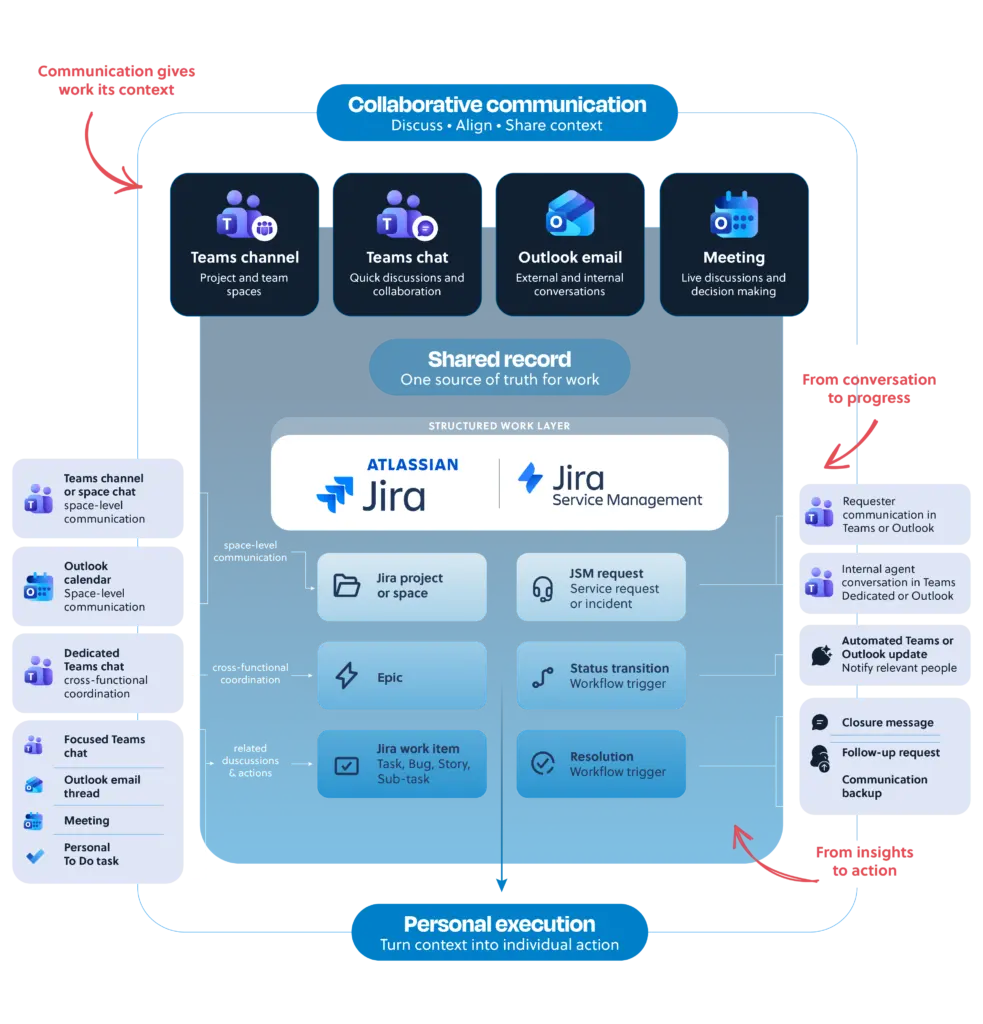
How to customize the communication structure
A scalable communication model requires more than individual integrations. Teams need reusable configuration that reflects their processes. This can be organized into three layers.
Presets define how communication is created
A Preset goes beyond defining message content. It establishes the context in which a communication item is created.
Depending on the use case, a Preset can specify who participates and how the communication is configured, including Teams chat or channel settings, sharing options, notifications, and meeting settings. It can also apply default templates, built-in automation, and labels for internal, external, or sensitive communication.
For example, teams might create a “Customer escalation” email Preset, a “Major incident room” Teams Preset, or a “Project review” meeting Preset.
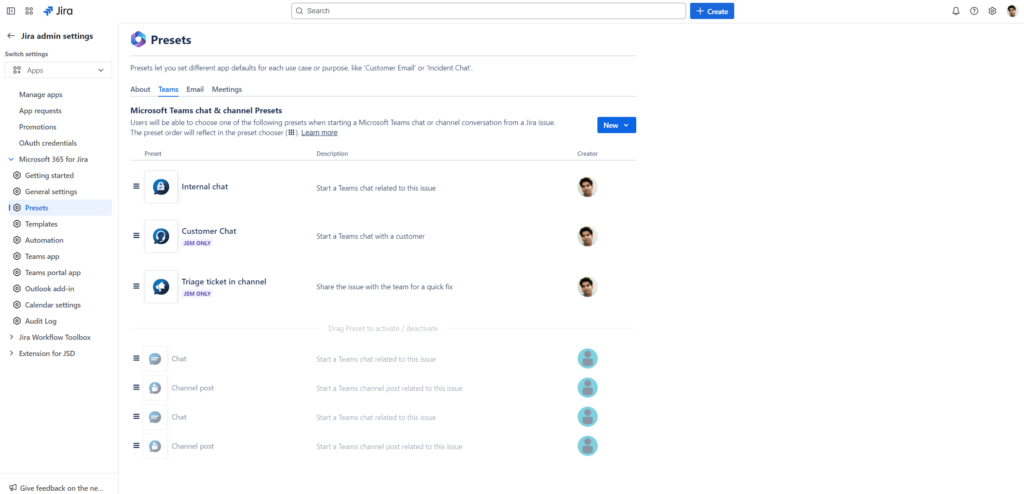
Presets can be configured globally or for individual Jira projects. However, globally created Presets must still be activated in the relevant projects, and project administrators cannot edit global Presets. The current documentation also states that Presets are available for Jira Cloud only. See the Microsoft 365 for Jira Preset documentation.
Adaptive Cards within Presets can help bridge the gap by bringing structured Jira information and actions directly into the conversation. Instead of switching tools or copying details manually, users can review relevant work information, make simple updates, or trigger the next step from within Microsoft while keeping Jira as the underlying source of truth.
Templates define what the message says
Templates provide preconfigured content for Microsoft Teams chats and channel conversations, as well as Outlook emails and meetings. They can be created globally or for a specific Jira project, depending on where they are needed.
For example, teams can send standardized Outlook emails or Microsoft Teams messages with a single click. This is particularly useful in Jira Service Management projects, where recurring customer communication can be handled faster and more consistently.
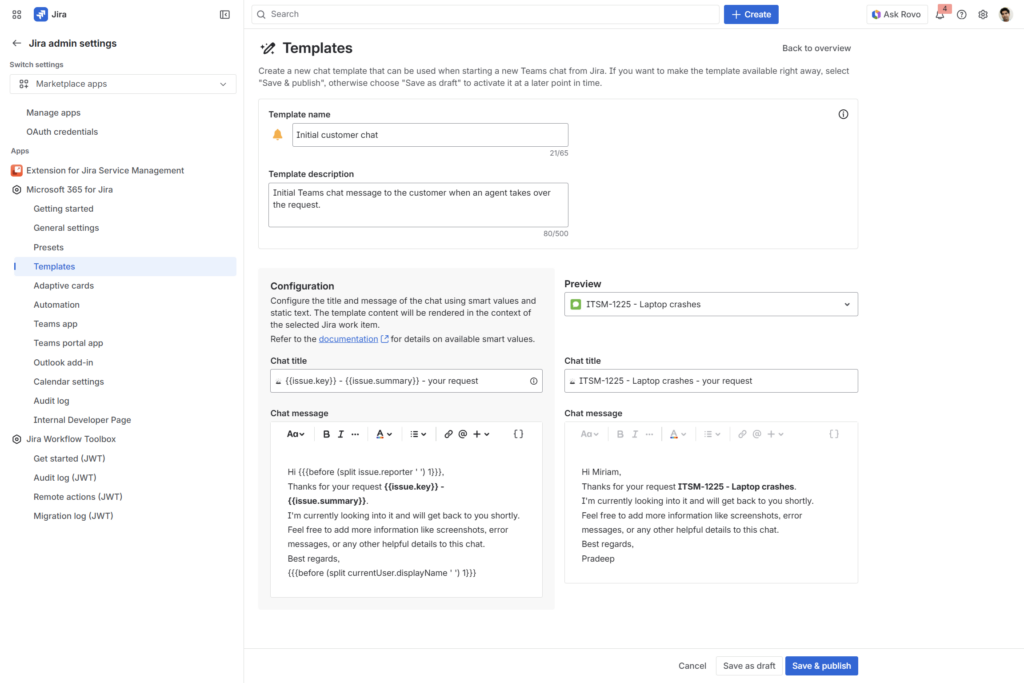
Templates reduce repetitive writing and ensure that recipients receive the information they need. They can also use Jira values to populate content dynamically. The yasoon documentation explains how to configure global and project-specific Microsoft 365 communication templates.
Templates should provide structure without preventing users from adding relevant context. Short prompts and clearly labeled fields generally work better than long, rigid messages.
Automation defines when communication happens
Jira automation uses triggers, conditions, and actions. A trigger starts the rule, conditions decide whether it should continue, and actions perform the required work. Atlassian provides an overview in its documentation for creating Jira automation flows.
A communication automation could follow this logic:
- Trigger: A high-priority incident is created.
- Condition: Priority equals highest and the affected service is business-critical.
- Action: Create a Teams incident chat from a predefined Preset.
- Action: Post a structured message with the incident owner and current status.
- Action: Add the conversation link to the Jira work item.
- Action: Notify a stakeholder channel when the status changes.
- Action: Send a closure update after resolution.
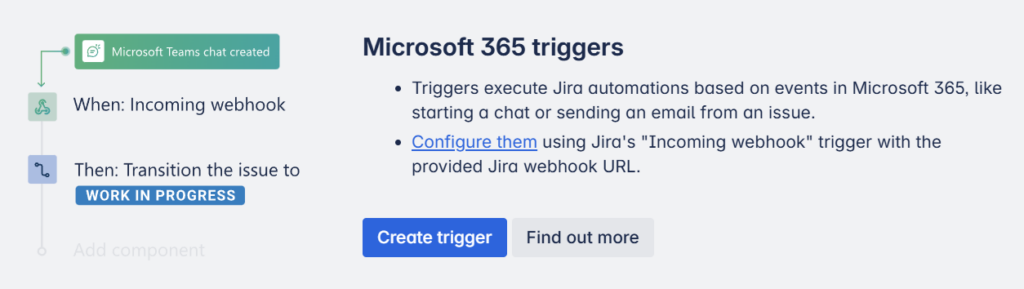
A trigger starts with an event in Microsoft 365 and causes a change in Jira. For example, starting a Teams chat can move an issue to “In Progress.”
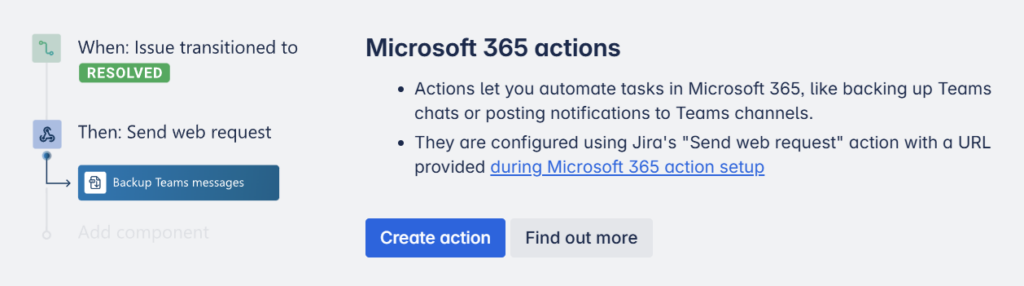
An action starts with an event in Jira and causes a response in Microsoft 365. For example, resolving an issue can automatically back up its Teams chat.
Microsoft 365 for Jira extends Jira automation with Microsoft 365 actions and triggers for Teams and Outlook workflows. Review the yasoon actions and triggers documentation before designing the workflow.
A practical implementation framework
A structured communication model across Jira and Microsoft 365 does not have to be difficult to introduce. With a few clear guidelines, a consistent setup, and a gradual rollout, teams can quickly understand where communication should happen and what information needs to stay in Jira.
Smooth onboarding is a key part of that process. When users understand the model and see how it supports their daily work, Jira adoption becomes easier and teams and departments are more likely to buy into the approach. The framework below gives an example how to put that structure in place step by step.
Common mistakes to avoid
Most problems do not come from the tools themselves, but from unclear guidelines around how they are used. Teams can quickly become a second system of record, Jira notifications can turn into background noise, and templates or Presets can create more confusion than consistency if nobody owns them.
Access and sharing rules also deserve attention, especially when conversations include sensitive information or external participants. The best approach is to define the communication model first, including where conversations happen, who needs to be involved, and what outcome should be captured, and only then add templates and automation.
Start to structure your communication in Jira and Microsoft 365
Structured communication does not mean storing everything in one application. It means keeping work, conversations, and decisions connected through a clear operating model, so teams can find the context they need, act faster, and avoid duplicating effort across tools.
Jira provides the shared record, while Teams and Outlook provide the communication channels. Templates make recurring messages faster and more consistent, Presets ensure each communication starts with the right context, and automation triggers it at the appropriate point in the workflow. Together, these elements reduce manual coordination, preserve important decisions, and keep communication aligned with the work.
Organizations that need a connected implementation can explore Microsoft 365 for Jira, review the product documentation, or book a demo with yasoon’s communication experts.