
Microsoft Teams
25. August 2026
Can you use Jira in Microsoft Teams?

Of course you can use Jira in Microsoft Teams. Depending on the integration, users can create, search, and update Jira work items, receive notifications, submit JSM requests, and connect Teams conversations to Jira. The features presented in this article are part of the Microsoft 365 for Jira app available on the Atlassian Marketplace.
The real value comes from bi-directional integration and full contextualization. Updates move between both systems, while conversations remain connected to the relevant Jira work item or JSM request. Native Atlassian apps cover common Jira and JSM actions, while Microsoft 365 for Jira supports broader, configurable collaboration across Teams, Outlook, Jira, and Jira Service Management.
In this feature deep dive, we answer two central questions: What does Jira in Microsoft Teams look like, and which teams benefit from it?
Create and link Jira work items from Teams conversations
Users can create a Jira work item directly from a Teams chat or channel message. The selected message is transferred into the creation dialog, providing Jira users with the context they need to start work. Chats and conversations can also be linked to existing Jira work items and you are able to choose whether to include the first message or the complete thread.
Sharing controls determine who can view the connected conversation. When sharing is enabled, Jira users with access to the work item can see it. Restricted conversations remain visible only to permitted Teams members and connected Jira users.
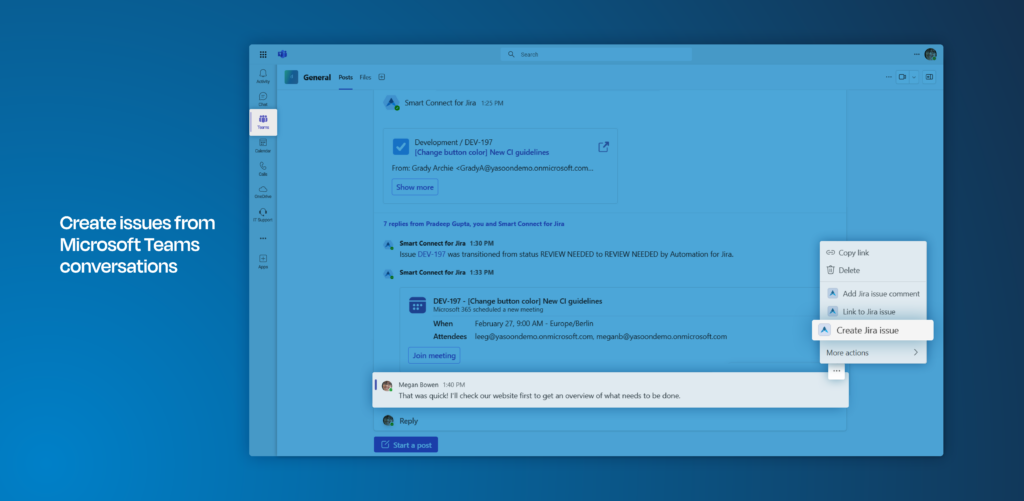
This feature is particularly useful for software development, product, and project teams. It helps when decisions, requirements, bugs, or action items first emerge in Teams conversations. Cross-functional teams also benefit because Microsoft Teams users can contribute context while Jira users manage the resulting work through structured workflows.
Work with a Jira board in Microsoft Teams
Use Jira in Microsoft Teams by adding a Jira board as a tab in a Microsoft Teams channel. The embedded board provides an overview of planned, active, and completed work without requiring users to open Jira separately.
Users can create work items, open details, filter by assignee, and move cards between statuses using drag and drop. Non-Jira users can view board information and work item details, but actions such as watching or assigning work items require a Jira account.
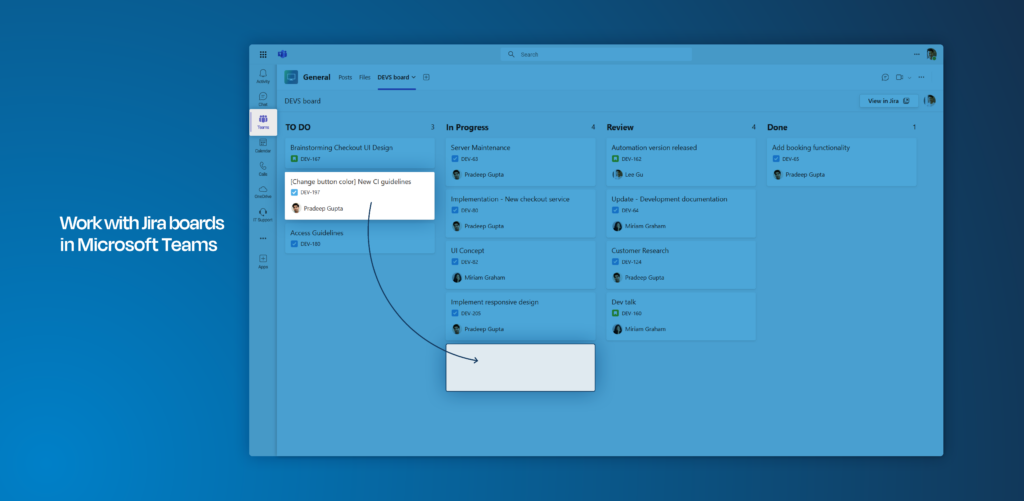
Jira boards in Microsoft Teams are particularly useful for project, software development, product, marketing, and other cross-functional teams. Team leads and stakeholders gain a quick overview of progress, responsibilities, and blockers. Teams with occasional or non-Jira users also benefit because work remains visible in Microsoft Teams, while Jira users retain access to more advanced actions.
Raise JSM support tickets from Microsoft Teams
The JSM customer portal can be embedded directly in Microsoft Teams. Employees can submit support requests using configured forms and track them under “My Requests”.
But people will be people. Even with a clearly defined support process, requests may still arrive as regular Teams messages. In these cases, agents can create JSM requests directly from existing chats or channel conversations, preserving the original context instead of copying information manually.
Service agents receive the resulting requests in Jira Service Management and can contact customers through Teams from the relevant work item. Customers do not need a Jira license to submit or track requests through the portal app in Microsoft Teams.
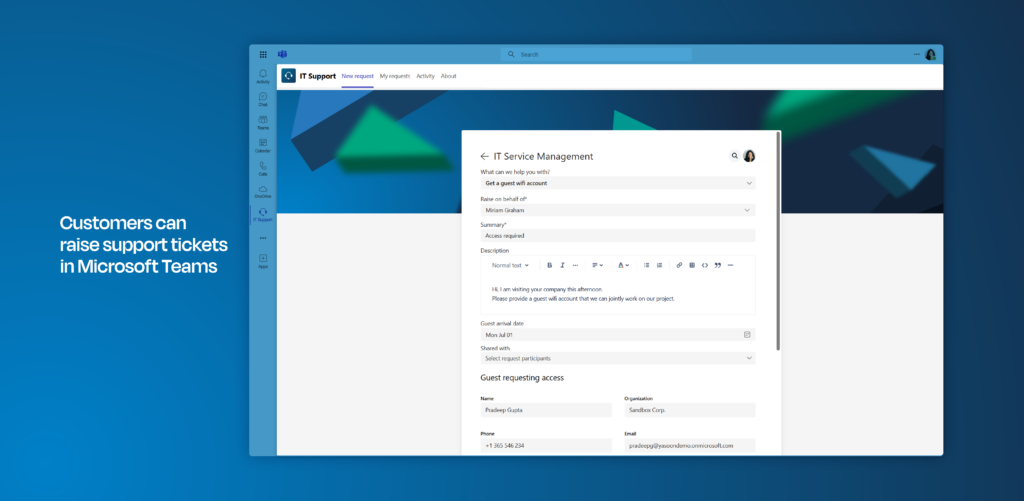
This feature benefits IT support, HR, facilities, finance, legal, and other internal service teams using Jira Service Management. It is especially useful for organizations where employees already work in Microsoft Teams but rarely access Jira. Requesters get a familiar support experience, while service agents continue managing structured workflows in JSM.
Receive AI summaries in Microsoft Teams
For Jira Software projects, Teams Chat Presets can generate daily or weekly AI summaries. These can cover discussion topics, open and resolved work items, new work, and assignee changes. Teams can review the summary, edit it, add it as a Jira comment, or post it to an existing space chat. Stakeholders receive a concise update without monitoring every conversation or Jira change.
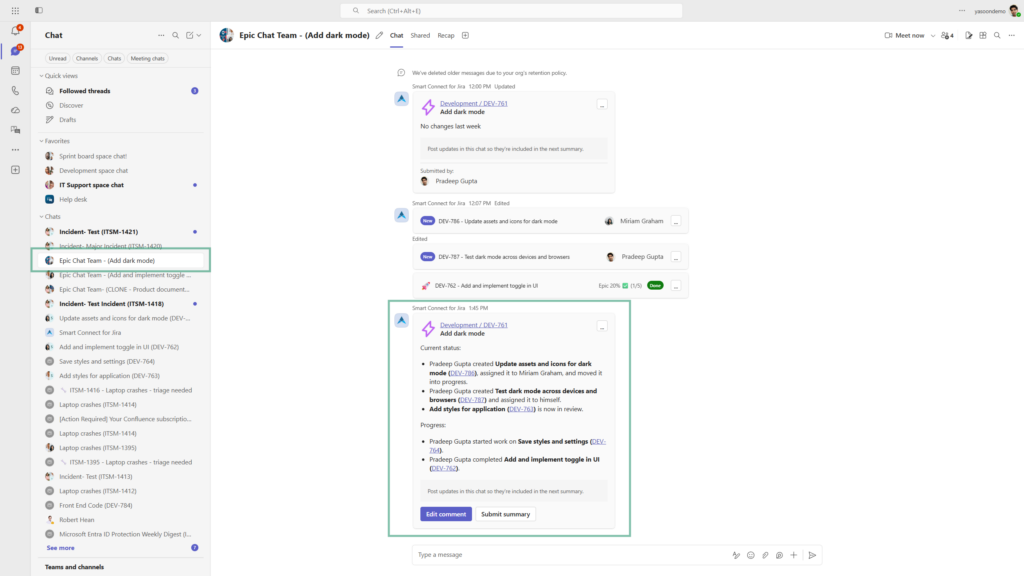
AI summaries are particularly useful for software development, product, project management, and cross-functional delivery teams. They help team leads, product owners, and stakeholders track progress, new work, ownership changes, and unresolved items. Distributed teams and participants who cannot follow every Teams conversation or Jira update also gain a concise, recurring overview.
What is required to make the integration work?
After installing Microsoft 365 for Jira, Administrators must enable the Teams feature and install the free Smart Connect for Jira app in Microsoft Teams. The JSM portal requires the separate Teams portal app. Before rollout, Jira and Microsoft administrators should review permissions, sharing settings, and project-level configuration.
Choose features that fit your workflow
These are selected examples of how to use Jira in Microsoft Teams, rather than a complete feature list. The most useful setup depends on your organization’s workflows, user groups, permissions, and collaboration requirements. Select and configure the features that support your specific use case.